Exploring the map
To interact with the map, click and drag the map in any direction.
To zoom in and out of the map, click on the + or - icons of the map slider on the right. You can also use your mouse scrollwheel.
Click on map icons to open up info windows that contain more information about the point of interest.
 Car park
 Shuttle Bus Stop
 Public Bus Stop
Right click on the map to open a menu with more functions – What's here / Clear map / Report a problem
Searching for a place
- Once you start typing in the search box, you can choose from the list of suggestions.
- Press the enter key or click on the search button to search.
There are a few ways you can search for places:
- By name: "TR40"
- By building: "School of Art, Design and Media"
- By abbreviations: "NIE"
- By address: "50 Nanyang Avenue"
- By postal code: "639798"
- By keywords: "barber"
Searching for directions
To look for directions between places, just include the "to" keyword between the place you're going from, and the place you're going to.
Examples:
- "nie to spms"
- "tr40 to canteen b"
- "639798 to ced"
- "50 nanyang avenue to sac"
Similar to searching for places, there will also be a list of suggestions that you can choose from, once you start typing in the search box.
Browsing the directory
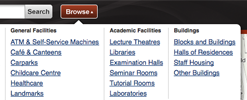
If you'd like to browse a directory of places, click on the "Browse" icon next to the search box to open the browse window.
Email and web linking
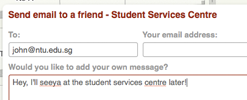
You can send an email or link of the current page that you're browsing to your friend.
Email
- Click on the "Email" link on the navigation menu(top right corner of the webpage).
* You'll notice that the email window changes according to the page you're currently browsing. - Fill in the To and From email addresses.
- Click on the "send" button.
Link
- Click on the "Link" link on the navigation menu(top right corner of the webpage).
- Copy link.
Printing pages
- Click on the "Print" link on the navigation menu(top right corner of the webpage).
- A new browser window will open up, with printer-friendly formatting for the current page you're browsing.
Google Street View
NTU Campus Map uses Google Street View to display 360° panoramic street images along NTU roads.
- To turn on the feature, click on the "Street View" button at the top right corner of the map.
- Now, click anywhere along a road to see the Street View images for that point.
- To move around in Street View, click on the direction arrows along the roads, or double click at a point.
- To exit Street View, click on the "x" icon at the top right corner of the map.
Sending Feedback
If you have any suggestions or feedback that you'd like us to hear, click on the "feedback" link on the navigation menu, top right corner of the webpage.